[[TOC]]
How To Use Third Party Certificates with Azure
Tools Needed
You will need a local copy of OpenSSL, which can be obtained from Https://openssl.org.
Generating a certificate request
This document has come about as requesting and installing certificates in Azure can be nuanced and drive you a bit batty.
Do not generate a third-party certificate from Key Vault. Key Vault will not let you export the private key, and therefore you will not be able to import the certificate.
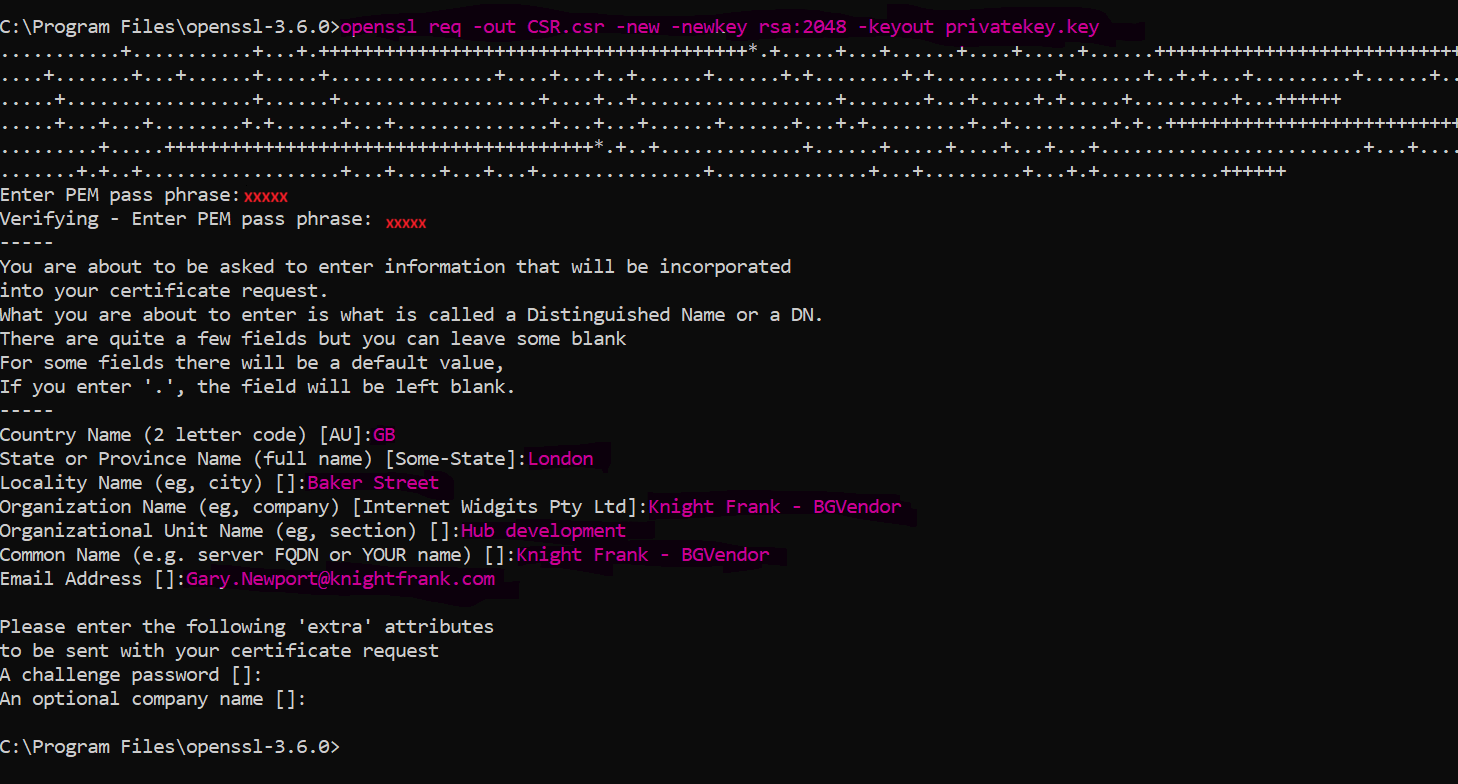
Use OpenSSL to generate a certificate request.
openssl req -out CSR.csr -new -newkey rsa:2048 -keyout privatekey.key
You will be prompted to enter a passcode of at least 4 characters, REMEMBER IT.
You will then be prompted to enter:
This is the example used for the land registry.
| Country Name | GB |
|---|---|
| State or Province | (Optional) London |
| Locality | (Optional) Baker Street |
| Organization | Knight Frank - BGVendor |
| Organizational Unit | (optional)Hub development |
| Common Name | Knight Frank - BGVendor |
Pass the CSR file to the certificate issuer and keep the private.key file safe.
Send To Certificate Issuer.
- Send the CSR file to the certificate issuer and await their response.
- The land registry returns 3 files, a root, intermediate and certificate (cer) files.
Generate PEM file.
The process is :- 1. Create the Chain.pem file. 1. The chain.pem file is a simple concatenation of the cer files that the issuer has supplied. Each entry in the pem file needs to be pre/post pended by the following tags ‘-----BEGIN CERTIFICATE-----’ and ‘-----END CERTIFICATE-----’ 1. The cer files need to be appended in leaf to root order. 2. Create PFX file 1. Run the command. 1. openssl pkcs12 -inkey private.key -in chain.pem -export -out output.pfx 1. The command will ask you to enter the password you used to create the CSR request. 3. Upload into Azure
Azure
Create A Key Vault Certificate.
On the Key vault/Certificates tab click the Generate/import button
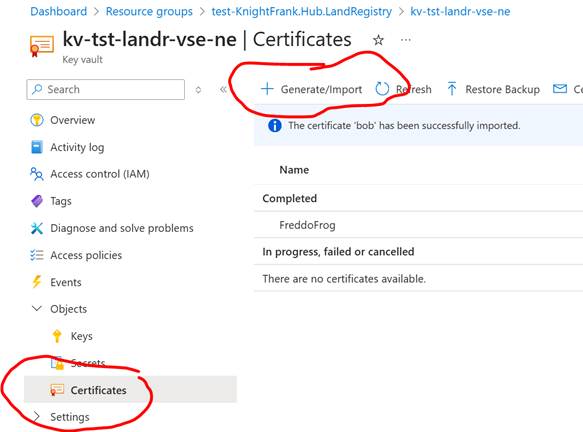 The create a certificate page will be shown.
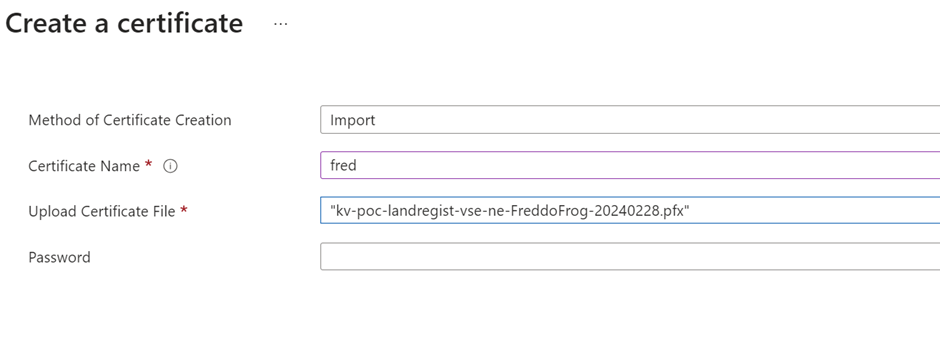
* Select Import.
* Give it a name .
* Select the PFX file you have just generated.
* Enter the password you used to create the PFX file.
The create a certificate page will be shown.
* Select Import.
* Give it a name .
* Select the PFX file you have just generated.
* Enter the password you used to create the PFX file.
- The file will be uploaded, and the certificate will be available.
- You can delete the previous certificate request entry.

Using a Certificate (Example)
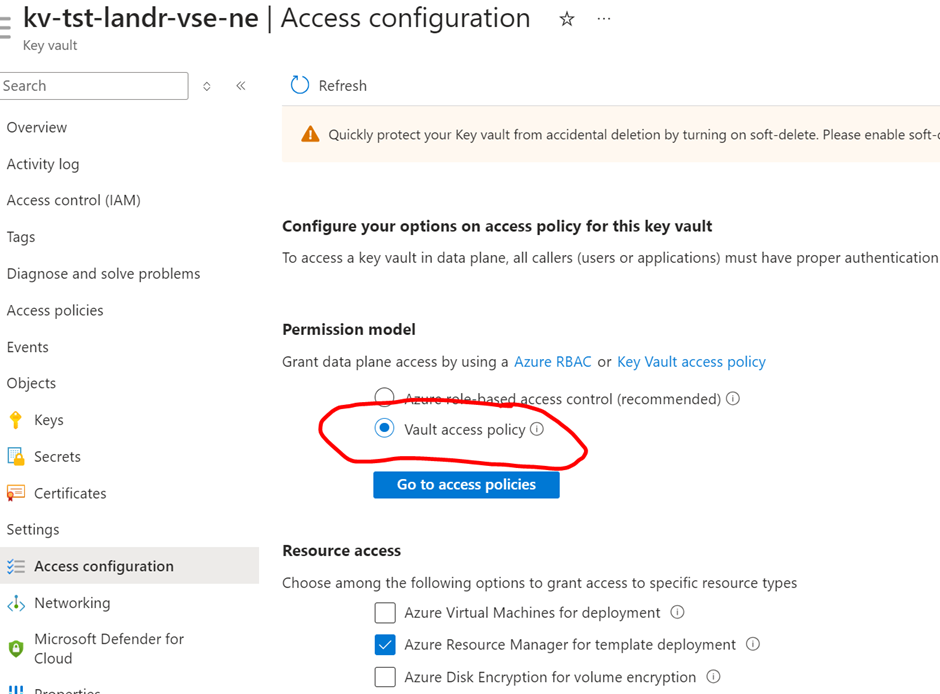
- The key vault must be in ‘Vault Access Policy’ mode.
- Once a certificate has been loaded into the Azure function this can be changed to the normal RBAC mode.
- You will not be able to synchronise the certificate between the function and key vault, If you try to, the certificate in the function will become invalid, and you will have to change the key vault access policy again and then reattach the certificate to the function.
In your Azure Function under Certificate, select ‘Bring your own Certificate’ and Add
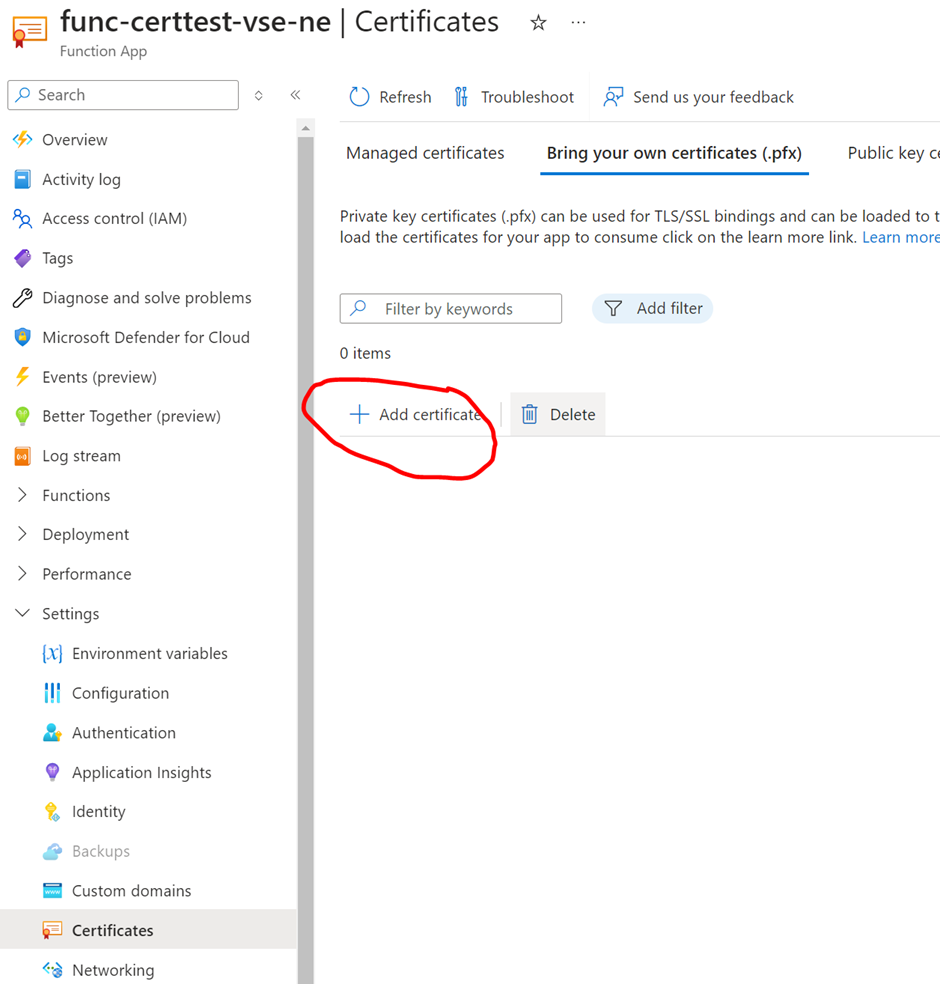
This will bring up a panel on the right-hand side, Choose Key Vault as your certificate source, and then choose the relevant Key Vault and certificate.

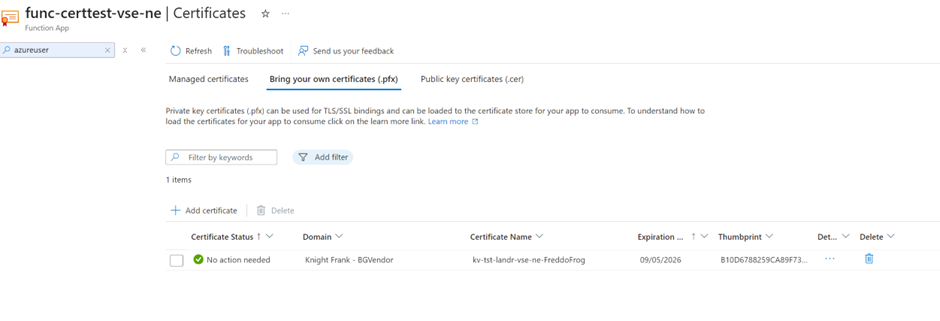
The certificate will be listed when it has been added.
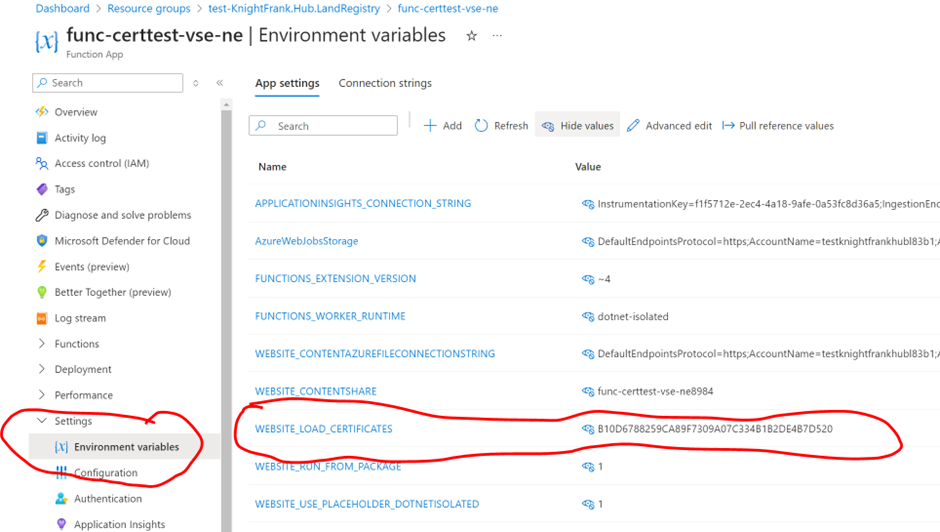
Add WEBSITE_LOAD_CERTIFICATES to environment variables. The value can either a comma separated list of certificate thumbprints or ‘*’ to import all certificates. What this does is load the certificates in to the ‘My, Current User’ certificate store of the function. N.B You will not be able to load certificates from within your function code.
To Check its loaded, create a simple azure function
[Function("Function1")]
        public async Task<HttpResponseData> Run([HttpTrigger(AuthorizationLevel.Anonymous, "get", Route = null)] HttpRequestData req)
        {
            _logger.LogInformation("C# HTTP trigger function processed a request.");
            var response = req.CreateResponse();

            bool isRunningInIisExpress = Process.GetCurrentProcess()
                                .ProcessName.ToLower().Contains("iisexpress");
            _logger.LogInformation($"ProcessName {Process.GetCurrentProcess().ProcessName.ToLower()}");

            var store = new X509Store(StoreName.My, StoreLocation.CurrentUser);
            store.Open(OpenFlags.ReadOnly | OpenFlags.OpenExistingOnly);
            var certificateCollection = store.Certificates;
            store.Close();
            foreach (var certificate in certificateCollection)
            {
                _logger.LogInformation($"Thumbprint : {certificate.Thumbprint}");
            }

            response.StatusCode = HttpStatusCode.OK;
            await response.WriteStringAsync("whooo");
            return response;
        }

Some Useful OpenSSL Commands
Open SSL
- Extract Private Key - You will have to specify a password, at second prompt.
- openssl pkcs12 -in [yourfile.pfx] -nocerts -out 1-encrypt.key
- Decrypt the Key
- openssl rsa -in 1-encrypt.key -out 2-decrypted.key
- Extract the certificate
- openssl pkcs12 -in [yourfile.pfx] -clcerts -nokeys -out 3-certificate.crt
- PFX to PEM
- openssl rsa -in 1-encrypt.key -outform PEM -out 4-private.key
- Decode CRT
- openssl x509 -in 3-certificate.crt -text -noout
- Create PFX
- openssl pkcs12 -export -out domain.pfx -inkey 1-encrypt.key -in 3-certificate.crt