Install SSL certificates issued by HM Land Registry as trusted root.
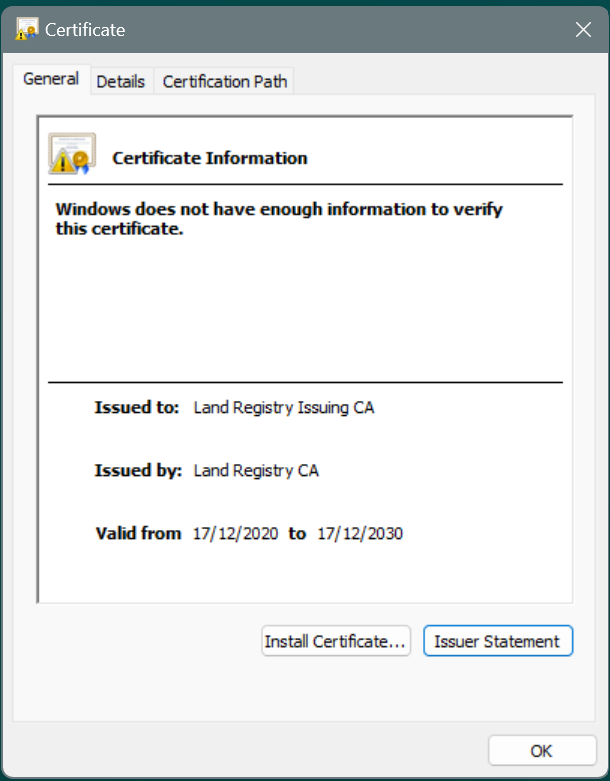
The SSL certificates issued by HM Land Registry need to be installed as trusted root certificates on the machine where the service handler is hosted. The process to install the certificates is as follows:
- Copy the root and intermediate certificate files issued by HM Land Registry to the machine where the service handler is hosted.
- Double click on the root and intermediate certificate files to open the certificate details window.
- Click on the Install Certificate button.
-
The Certificate Import Wizard will be shown. Select Local Machine as the store location.
-
Click Next.
- Select Place the certificates in the following store locations by clicking on the Browse button.
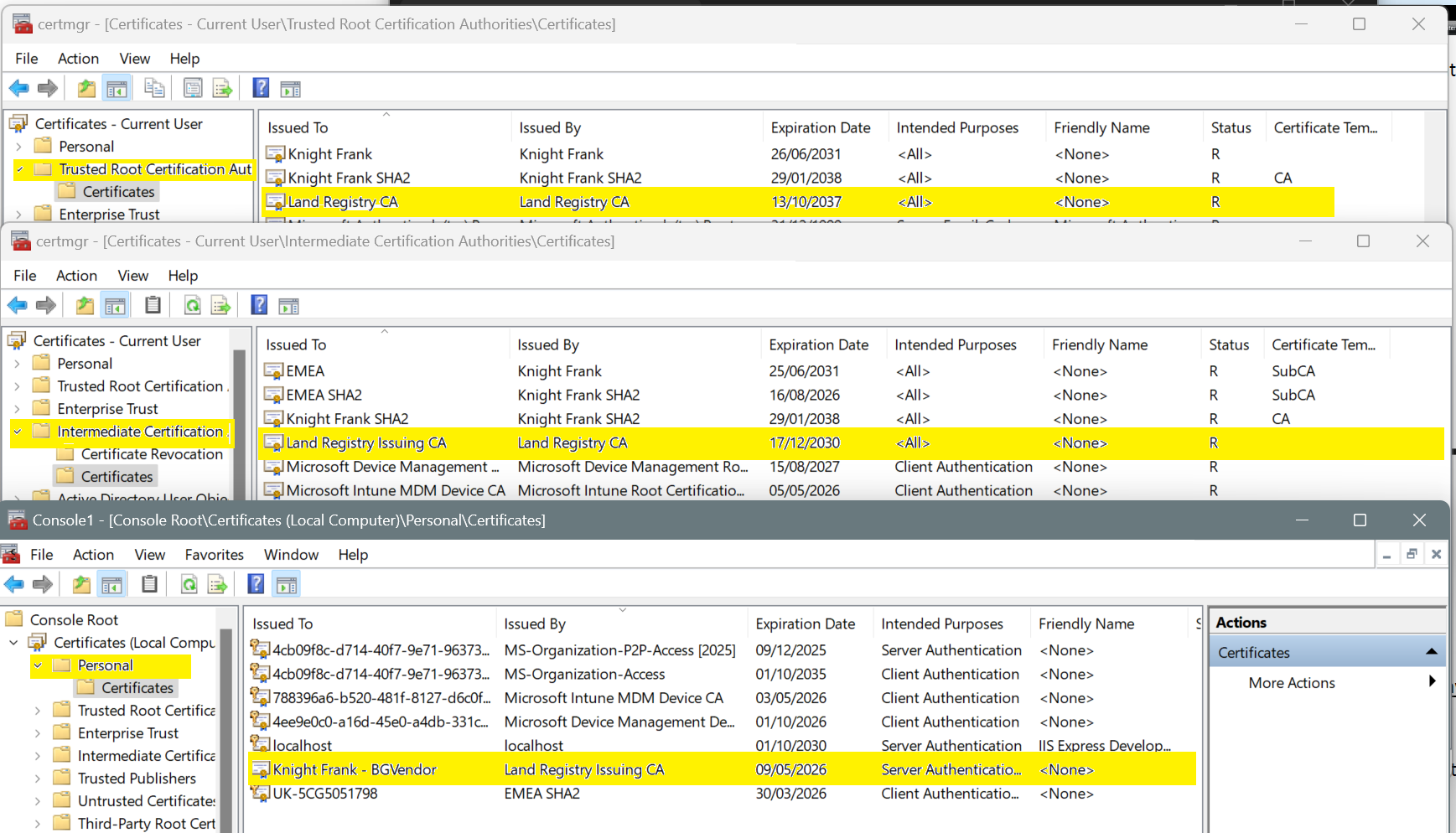
- place the Root certificate in the Trusted Root Certification Authorities store.
- place the Intermediate certificate in the Intermediate Certification Authorities store.
- Click Next.
-
Click Finish.
-
To complete the installation of the client certificate with the private key.
- Open a Command Prompt as Administrator.
-
Run the following command to associate the private key with the certificate. Replace the placeholder values.
1. Import the PFX file using the following command:openssl pkcs12 -export -out full_cert.pfx -inkey privatekey.key -in KnightFrank-BGVendor.cer Enter pass phrase for privatekey.key: "<enter password saved in the csr generation process>" Enter Export Password: "<enter password saved in the csr generation process>" Verifying - Enter Export Password: "<enter password saved in the csr generation process>"certutil -f -p "<enter password saved in the csr generation process>" -importpfx full_cert.pfx -
If successful, the output will confirm the private key was found and associated. Refresh your certificate manager; the key icon should now appear on the certificate
-
To Verify, follow these steps:
- In CertMgr (Certificate Manager), navigate to the Personal > Certificates folder.
- Locate the client certificate you just installed.
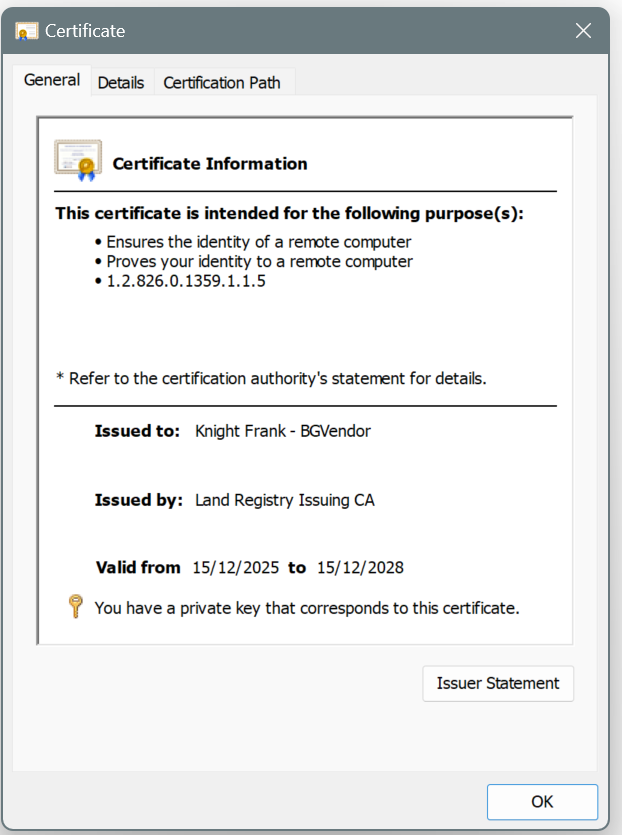
- Double-click the certificate you just imported.
- Check the bottom of the "General" tab. If you do not see a small key icon and the message "You have a private key that corresponds to this certificate," the request is incomplete.
The installed certificates can be viewed using the Microsoft Management Console (MMC) snap-in for certificates. To open the snap-in, run the command mmc.exe and add the Certificates snap-in for the Local Computer account.
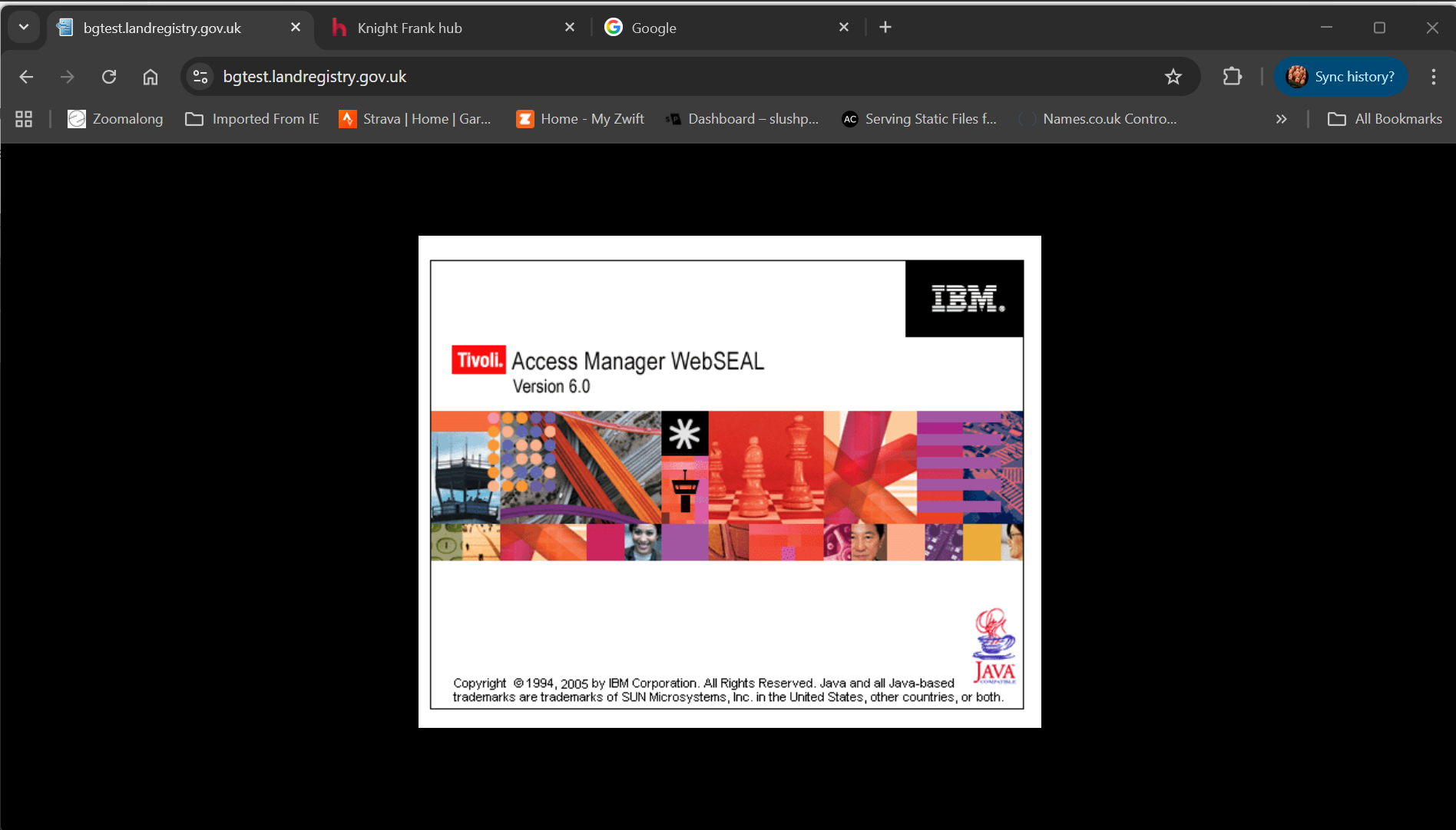
Once the certificates are installed, you can verify that it was successful by going to the business gateway URL in a web browser. If the certificates are installed correctly, you should not see any SSL/TLS errors when accessing the URL. https://bgtest.landregistry.gov.uk
- You should see a secure padlock icon in the address bar indicating that the connection is secure.
- You should see a gateway welcome page similar to the one shown below.